Have you ever thought about where all your files, photos, videos, and documents are actually saved on your computer or phone? The answer is simple — a storage device. Without a storage device, no computer can save any information, and everything you work on would be lost the moment you turn off your device.
In this complete guide, we will explain everything about storage devices in simple, easy-to-understand English. We will cover what a storage device is, why it is important, the different types of storage devices, their uses, key differences, important facts, and much more. By the end of this article, you will have a thorough understanding of computer storage devices — whether you are a student, a job seeker, or just someone who wants to know how their computer works.
What Is a Storage Device?
A storage device is a hardware component that is used to store, save, and retrieve digital data. It allows you to keep your information — such as documents, photos, videos, music, and programs — safely stored so you can access them whenever you need.
In simple words, a storage device is like a digital filing cabinet for your computer. Just like a physical filing cabinet keeps your important papers safe, a storage device keeps all your digital files safe and organized.
A computer cannot remember any settings or save any work without a storage device. From the operating system (like Windows) to your personal files and installed applications — everything is stored on one or more storage devices inside or connected to your computer.
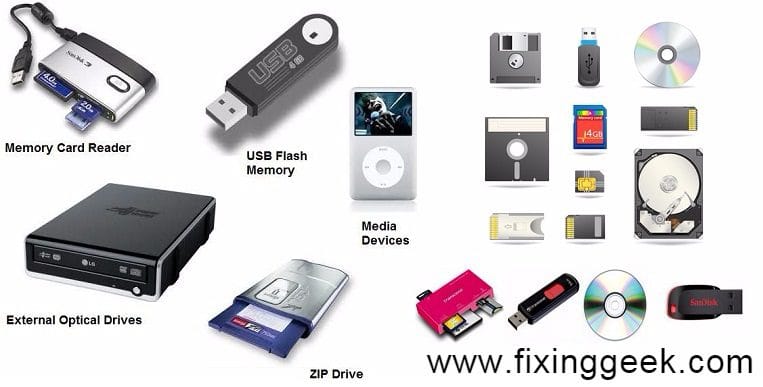
Common examples of storage devices include: Hard Disk Drive (HDD), Solid State Drive (SSD), USB Flash Drive, SD Card, CD, DVD, Magnetic Tape, and Cloud Storage.
Why Are Storage Devices Important?
Storage devices are absolutely essential for every computer system and digital device. Here is why they matter so much:
- Save your work permanently: Without storage, any document or photo you create disappears when you close the program or turn off the computer.
- Store the operating system: Your computer needs a storage device to keep Windows or any other OS installed. Without storage, a computer cannot even start.
- Transfer data between devices: Portable storage devices like USB drives and SD cards let you carry and share data easily from one device to another.
- Create data backups: External storage devices are used to back up important files so you do not lose them if your computer crashes or gets damaged.
- Install and run applications: All software, games, and apps are stored on storage devices. Without storage, no applications can be installed or used.
- Store large amounts of data: Modern storage devices can hold terabytes of data — millions of documents, photos, and videos in one place.
Types of Storage Devices
Storage devices are broadly divided into two main categories — Primary Memory (Internal) and Secondary Memory (External). Let us explore each type in detail.
1. Primary Memory (Internal Memory)
Primary memory is the main memory of a computer. It is directly accessible by the CPU (Central Processing Unit) and stores data that is currently being processed. Primary memory is mounted directly on the motherboard (Printed Circuit Board — PCB).
Primary memory is extremely fast but has limited capacity and is more expensive per gigabyte compared to secondary memory. There are two main types of primary memory:
A. RAM — Random Access Memory
RAM is the most well-known type of primary memory. It is volatile memory — meaning all data stored in RAM is automatically lost when you turn off the computer. RAM temporarily stores the data and programs that are currently being used so the CPU can access them very quickly.
Think of RAM like your work desk: You keep the papers you are currently working on your desk for easy access. When you finish, you put them away (save to storage). The desk itself does not permanently store anything.
Two types of RAM:
- DRAM (Dynamic RAM): Needs to be constantly refreshed to hold data. Slower but cheaper. Used as the main memory in most computers and laptops.
- SRAM (Static RAM): Does not need refreshing. Much faster and more expensive than DRAM. Used in CPU cache memory for ultra-fast data access.
Key facts about RAM:
- RAM is volatile — all data is lost when power is turned off
- More RAM = faster and smoother computer performance
- Modern computers typically have 4GB to 64GB of RAM
- RAM speed is measured in MHz or GHz
- RAM is much faster than any hard disk or SSD storage
B. ROM — Read Only Memory
ROM is non-volatile memory — meaning data stored in ROM is permanent and is not lost when the computer is turned off. ROM stores the basic startup instructions for the computer, known as BIOS (Basic Input Output System). These instructions tell the computer how to start up and how to communicate with hardware.
Three types of ROM:
- PROM (Programmable ROM): Can be programmed once by the manufacturer or user using a special device. Once programmed, data cannot be changed.
- EPROM (Erasable Programmable ROM): Can be erased using ultraviolet (UV) light and then reprogrammed. Used in older computers.
- EEPROM (Electrically Erasable Programmable ROM): Can be erased and reprogrammed using electrical signals without removing the chip. Used in modern computers for BIOS/UEFI firmware.
2. Secondary Memory (External Memory)
Secondary memory is not directly accessible by the CPU. Data must first be loaded into primary memory (RAM) before the CPU can process it. Secondary memory is used for permanent storage of large amounts of data and programs.
Unlike primary memory, data in secondary memory is not lost when the computer is turned off. Secondary memory is much cheaper per gigabyte and can store far larger amounts of data than primary memory. It can be internal (inside the computer) or external (connected via USB or other ports).
A. Hard Disk Drive (HDD)
The hard disk drive is the traditional storage device found inside most desktop computers and older laptops. It uses rapidly spinning magnetic disks (platters) and a read/write head to store and retrieve data.
- Storage capacity: 500GB to 10TB (terabytes) in consumer drives
- Speed: Slower than SSD — typical read/write speed is 80-160 MB/s
- Cost: Very affordable — great value for large storage needs
- Best for: Storing large amounts of data like movies, music, and backups at a low cost
- Drawback: Can be damaged if dropped because it contains moving mechanical parts
B. Solid State Drive (SSD)
An SSD is a modern, faster alternative to the traditional HDD. It uses flash memory chips (similar to a USB drive) instead of spinning magnetic disks. SSDs are now standard in most modern laptops and desktop computers.
- Speed: Much faster than HDD — typical read/write speed is 500MB/s to 7000MB/s (NVMe SSDs)
- Durability: More durable than HDD — no moving parts means it handles shocks and drops better
- Power consumption: Uses less power — improves laptop battery life significantly
- Size: Lighter and thinner than HDD — ideal for slim laptops
- Cost: More expensive than HDD for the same storage capacity
- Boot time: Computer with SSD boots in 10-15 seconds vs 45-60 seconds with HDD
C. USB Flash Drive (Pen Drive)
A USB flash drive — commonly called a pen drive or thumb drive — is a small, portable storage device that plugs directly into a USB port. It uses flash memory and is one of the most convenient ways to carry and transfer files.
- Storage capacity: 4GB to 256GB (some go up to 1TB)
- Best for: Transferring files between computers, sharing documents, carrying data
- Advantage: Small, lightweight, easy to carry anywhere in your pocket or bag
- No power required: Gets power directly from the USB port — no separate charger needed
- Also known as: Thumb drive, memory stick, USB stick, flash drive
D. SD Card (Memory Card)
An SD card (Secure Digital card) is a very small, thin storage device used in cameras, smartphones, tablets, and other portable devices. It is a type of removable flash memory storage.
- Common types: SD, miniSD, microSD (most popular in smartphones and action cameras)
- Storage capacity: 2GB to 1TB
- Best for: Expanding storage in smartphones, cameras, drones, and tablets
- Speed ratings: Class 2, 4, 6, 10, UHS-I, UHS-II — higher = faster write speeds
E. CD and DVD (Optical Storage)
CDs (Compact Discs) and DVDs (Digital Versatile Discs) are optical storage devices that use laser light to read and write data. While less common today, they were extremely popular for distributing software, music, and movies in the 1990s and 2000s.
- CD storage capacity: Up to 700MB
- DVD storage capacity: 4.7GB (single layer) to 8.5GB (dual layer)
- Blu-ray capacity: 25GB (single layer) to 50GB (dual layer)
- Types of CD: CD-ROM (read only), CD-R (write once), CD-RW (rewritable)
- Best for: Sharing data, distributing software, music, movies — easy to transport
- Advantage: CDs and DVDs are exchangeable and easy to transport
F. Magnetic Tape
Magnetic tape is one of the oldest forms of data storage. It stores data on a thin strip of magnetically coated material and is still widely used in large organizations and data centers for backup purposes.
- Storage capacity: Can store hundreds of terabytes — ideal for large-scale backups
- Cost: Very affordable per gigabyte — one of the cheapest long-term storage options
- Best for: Enterprise data backup, archiving, and disaster recovery
- Drawback: Very slow access speed — data must be read sequentially (not random access)
G. Floppy Disk
The floppy disk was one of the earliest portable storage devices. It was widely used in the 1980s and 1990s but is now completely obsolete and no longer used. However, it is still an important topic in computer awareness exams.
- Storage capacity: Only 1.44MB — the smallest storage capacity of any storage device
- Status: Obsolete — completely replaced by USB drives and cloud storage
- Fun fact: The ‘Save’ icon in most programs still looks like a floppy disk — a reminder of computing history
H. Cloud Storage
Cloud storage is a modern type of storage where your data is saved on remote servers managed by companies and accessed via the internet. Unlike physical storage devices, cloud storage requires no hardware on your end — just an internet connection.
- Popular services: Google Drive, Dropbox, OneDrive, iCloud, Amazon S3
- Advantage: Access files from anywhere, on any device, at any time
- Best for: File backup, sharing files with others, team collaboration
- Free storage available: Google Drive offers 15GB free, Dropbox offers 2GB free
- Drawback: Requires internet connection — no internet means no access to files
- Security: Data is encrypted and stored on secure servers — generally very safe
HDD vs SSD — Detailed Comparison
The most common question people have is: Should I choose an HDD or SSD? Here is a detailed comparison to help you understand the difference:
- Speed: SSD wins easily. SSD is 3-5x faster than HDD for everyday tasks. Computer boots in seconds with SSD.
- Durability: SSD wins. No moving parts means SSD handles drops and vibrations much better than HDD.
- Price: HDD wins. You get much more storage for less money with HDD. A 1TB HDD costs less than a 500GB SSD.
- Noise: SSD wins. SSD is completely silent. HDD produces a clicking or humming sound from spinning disks.
- Power consumption: SSD wins. Uses less power — better for laptop battery life.
- Storage capacity: HDD wins. HDDs are available in much larger sizes at lower prices.
- Best choice for speed: SSD — for operating system and applications.
- Best choice for large storage: HDD — for storing movies, music, and large files.
Pro tip: Many modern computers use both — an SSD for the operating system (fast boot) and an HDD for storing large files (affordable capacity). This gives you the best of both worlds.
Primary Memory vs Secondary Memory
- Speed: Primary memory (RAM) is much faster than secondary memory (HDD/SSD).
- Volatility: Primary memory (RAM) is volatile — data lost on power off. Secondary memory is non-volatile — data retained permanently.
- Capacity: Primary memory has limited capacity (4GB-64GB). Secondary memory has much larger capacity (500GB-10TB+).
- Cost: Primary memory (RAM) is expensive per GB. Secondary memory (HDD) is very affordable per GB.
- CPU access: CPU can directly access primary memory. CPU cannot directly access secondary memory — data must be loaded into RAM first.
- Purpose: Primary memory holds currently running programs. Secondary memory stores everything permanently.
Computer Storage Units — From Bit to Exabyte
Understanding storage units is very important for computer awareness exams and everyday use. Here is the complete list from smallest to largest:
- 1 Bit: Smallest unit of data. Can be either 0 or 1.
- 8 Bits: = 1 Byte (can store one character like the letter ‘A’)
- 1024 Bytes: = 1 Kilobyte (KB) — a small text document
- 1024 KB: = 1 Megabyte (MB) — a medium-quality photo
- 1024 MB: = 1 Gigabyte (GB) — about 250 songs or 1000 photos
- 1024 GB: = 1 Terabyte (TB) — about 250,000 photos or 500 hours of HD video
- 1024 TB: = 1 Petabyte (PB) — massive data centers use this scale
- 1024 PB: = 1 Exabyte (EB) — the scale of global internet data
Important Facts About Storage Devices
These facts are commonly asked in computer awareness exams and job interviews:
- A floppy disk holds only 1.44MB — the smallest storage of any storage device.
- A hard disk can store huge amounts of data — modern HDDs hold up to 10TB or more.
- Storage devices act as both input AND output devices — you can read from them and write to them.
- Secondary storage is not constantly accessible by the CPU — data must first go to RAM.
- A USB flash drive is a portable, solid-state storage device that inserts into a USB port.
- A memory card (SD card) is a small storage medium used in cameras and smartphones.
- CDs and DVDs are optical storage devices — they use laser light to read and write data.
- CDs and DVDs are exchangeable and easy to transport data.
- Secondary storage devices are used for backup, storing, and transferring data in bulk.
- RAM is volatile memory — data is lost when the computer is turned off.
- ROM stores the BIOS — the program that runs when you turn on your computer.
- Cloud storage requires no physical device — just an internet connection.
- Magnetic tape is the cheapest option for large-scale data backup.
- An SSD can be 5-10 times faster than a traditional HDD.
- NVMe SSD is the fastest type of SSD — used in high-performance computers.
Related Topics on FixingGeek.com
Want to learn more about computer hardware and basics? Check out these helpful guides on FixingGeek:
- Learn about Computer Hardware — all physical components explained.
- Understand Input Devices — keyboard, mouse, scanner and more.
- Learn about Output Devices — monitor, printer, speakers and more.
- Explore What Is a Computer? — complete beginner guide.
- Read about Supercomputers — the world’s most powerful machines.
- Check Computer Abbreviations — full forms of common computer terms.
- Test yourself with our Computer Basic Quiz.
Trusted External Resources
- How SSDs Work — HowToGeek — detailed technical explanation of SSD technology.
- Google Drive Cloud Storage — free cloud storage service by Google.
- Western Digital — HDD Buying Guide — official resource for hard drive specifications.
Storage Device — 40 Frequently Asked Questions (FAQ)
Here are 40 most commonly asked questions about storage devices with short, clear answers:
Q1. What is a storage device?
A: A storage device is hardware used to save, store, and retrieve digital data such as files, photos, videos, and programs.
Q2. What are the two main types of storage devices?
A: Primary memory (RAM and ROM) and Secondary memory (HDD, SSD, USB drive, SD card, CD, DVD, cloud storage, etc.).
Q3. What is RAM?
A: Random Access Memory — temporary, volatile memory that stores data currently being used. Data is lost when the computer is turned off.
Q4. What is ROM?
A: Read Only Memory — permanent, non-volatile memory that stores startup instructions (BIOS). Data is retained even when power is off.
Q5. What is the difference between RAM and ROM?
A: RAM is volatile (data lost on power off) and is used for temporary storage. ROM is non-volatile (data permanent) and stores startup instructions.
Q6. Which is faster — HDD or SSD?
A: SSD is much faster than HDD. An SSD can be 5-10 times faster for everyday tasks like booting and opening applications.
Q7. What does SSD stand for?
A: Solid State Drive.
Q8. What does HDD stand for?
A: Hard Disk Drive.
Q9. What is the smallest storage device?
A: A floppy disk with a capacity of only 1.44MB is the smallest storage device.
Q10. Can a storage device work as both input and output?
A: Yes. Storage devices act as both input and output devices — you can read data from them (input) and write data to them (output).
Q11. What is cloud storage?
A: Cloud storage saves data on remote servers accessed via the internet. Examples: Google Drive, Dropbox, OneDrive, iCloud.
Q12. What is a pen drive?
A: A pen drive (USB flash drive) is a small portable storage device that plugs into a USB port and uses flash memory.
Q13. How much data can a CD hold?
A: A CD can hold up to 700MB of data.
Q14. How much data can a DVD hold?
A: A DVD can hold 4.7GB (single layer) or 8.5GB (dual layer) of data.
Q15. What is DRAM?
A: Dynamic RAM — a type of RAM that needs constant refreshing to retain data. Used as the main memory in most computers.
Q16. What is SRAM?
A: Static RAM — a faster type of RAM that does not need refreshing. Used in CPU cache memory.
Q17. What is PROM?
A: Programmable ROM — a type of ROM that can be programmed once and cannot be changed after that.
Q18. What is EPROM?
A: Erasable Programmable ROM — can be erased using ultraviolet light and then reprogrammed.
Q19. What is EEPROM?
A: Electrically Erasable Programmable ROM — can be erased and reprogrammed using electrical signals. Used in modern BIOS chips.
Q20. What is a memory card?
A: A memory card (SD card) is a small removable storage device used in cameras, smartphones, and tablets to store photos, videos, and files.
Q21. What is the capacity of a USB flash drive?
A: USB flash drives typically range from 4GB to 256GB, with some premium drives going up to 1TB.
Q22. Is RAM a storage device?
A: RAM is a type of primary memory/storage, but it is temporary. It is not used for permanent storage like HDD or SSD.
Q23. What is primary storage?
A: Primary storage (RAM and ROM) is directly accessible by the CPU and holds currently running programs and startup data.
Q24. What is secondary storage?
A: Secondary storage (HDD, SSD, USB, CD) is used for permanent data storage and is not directly accessible by the CPU.
Q25. What is NVMe SSD?
A: NVMe (Non-Volatile Memory Express) SSD is the fastest type of SSD. It connects via PCIe slot and can be 5-7x faster than regular SATA SSD.
Q26. What is magnetic tape used for?
A: Magnetic tape is used for large-scale data backup and archiving in enterprises and data centers. It can store hundreds of terabytes.
Q27. Is a floppy disk still used today?
A: No. Floppy disks are obsolete and no longer used. They have been completely replaced by USB drives and cloud storage.
Q28. What is the difference between internal and external storage?
A: Internal storage is built inside the computer (HDD, SSD, RAM). External storage is connected from outside (USB drive, SD card, external HDD).
Q29. What is 1 Terabyte equal to?
A: 1 Terabyte (TB) = 1024 Gigabytes (GB). It can store about 250,000 photos or 500 hours of HD video.
Q30. What is a Blu-ray disc?
A: A Blu-ray disc is an optical storage medium that can hold 25GB (single layer) to 50GB (dual layer) of data. Used for HD movies.
Q31. What is flash memory?
A: Flash memory is a type of non-volatile storage that retains data without power. Used in SSDs, USB drives, and SD cards.
Q32. What is an external hard drive?
A: An external hard drive is a portable HDD or SSD that connects to a computer via USB. Used for backup and extra storage.
Q33. What is cache memory?
A: Cache memory is extremely fast memory (SRAM) built into the CPU. It stores frequently used data for ultra-fast access.
Q34. Can cloud storage replace physical storage?
A: Cloud storage is a great supplement but not a complete replacement — it requires internet access and ongoing subscription costs.
Q35. What is a RAID system?
A: RAID (Redundant Array of Independent Disks) combines multiple HDDs or SSDs for better performance and/or data redundancy/backup.
Q36. How do I free up storage space on my computer?
A: Delete unused files, empty the Recycle Bin, uninstall unused programs, use Disk Cleanup, and move files to external storage or cloud.
Q37. What is the lifespan of an SSD?
A: A typical SSD lasts 5-10 years under normal use. Most SSDs are rated for hundreds of terabytes of writes before failure.
Q38. What is the lifespan of an HDD?
A: A typical HDD lasts 3-5 years under normal use. Regular backups are recommended as HDDs can fail due to mechanical wear.
Q39. What happens if RAM is full?
A: When RAM is full, the computer uses a portion of the hard drive as virtual memory (page file), which is much slower and causes the computer to slow down.
Q40. Which storage device is best for long-term archiving?
A: Magnetic tape is the best for long-term archiving due to its very low cost, high capacity, and long shelf life of 30+ years.
Conclusion
Storage devices are the foundation of every computer and digital device. Without them, no data could be saved, no programs could run, and no operating system could work. From the tiny floppy disk of the early computing days to the massive cloud storage systems of today, storage technology has evolved dramatically.
In this complete guide, we covered everything you need to know about storage devices — from basic definitions to detailed comparisons of HDD vs SSD, primary vs secondary memory, and all types of storage devices. We also covered important memory units, key facts, and 40 FAQ that will help you in exams, interviews, and everyday computer use.
We hope this guide was easy to understand and genuinely helpful. If you have any questions or suggestions, feel free to comment below. Stay tuned with FixingGeek.com for more easy-to-understand computer guides. Do not forget to share this article with your friends and classmates who are also learning about computers!